Video tutorial (2 min 5 s, with voiceover)
The video has English voiceover and captions, and is hosted on the Coravixa YouTube channel. Chapters: 0:17 open AI Connector · 0:30 create a token · 0:48 copy the one URL · 1:04 paste it into your AI app · 1:23 test with a prompt · 1:40 manage and revoke tokens. The video covers the AI Connector one-URL method; Store MCP Connect is described below.
The two connectors at a glance
Coravixa includes two separate MCP (Model Context Protocol) connectors. Both let an AI assistant call a fixed list of approved tools. Neither one gives the AI access to PHP execution, shell commands, raw SQL, file deletion or secrets.
| AI Connector | Store MCP Connect | |
|---|---|---|
| Purpose | Plan sites, generate sections and create draft pages | Look after the shop: products, stock, prices, orders, payment methods, workflows and undo |
| Where it lives | Companion plugin Coravixa AI Connector (bundled with the theme) | Built into Coravixa Core |
| Admin screen | Coravixa → AI Connector | Coravixa → Store MCP Connect |
| Tools | 7 | 16 |
| Endpoint | /wp-json/coravixa-ai/v1/mcp | /wp-json/coravixa/v1/mcp |
| Token prefix | cai_ | vmcp_ |
| Default state | Active once the plugin is activated; no token means no access | Off until you press Turn on |
| Needs WooCommerce | No | Yes |
Authorization: Bearer YOUR_TOKEN in Claude Code and similar clients. Store MCP Connect uses the header method only.Before you start
- You are an administrator. Both screens require the
manage_optionscapability. - Your site uses HTTPS. On production, Store MCP Connect refuses plain HTTP.
- Coravixa Core is active. The Store MCP tools also need WooCommerce; page generation also uses the Coravixa Section Builder from Coravixa Core.
- Your AI client supports remote MCP servers over HTTP with a custom
Authorizationheader.
Step 1: Install the AI Connector plugin
- Go to Appearance → Install Plugins.
- Install and activate Coravixa AI Connector. The ZIP is bundled inside the Coravixa theme package.
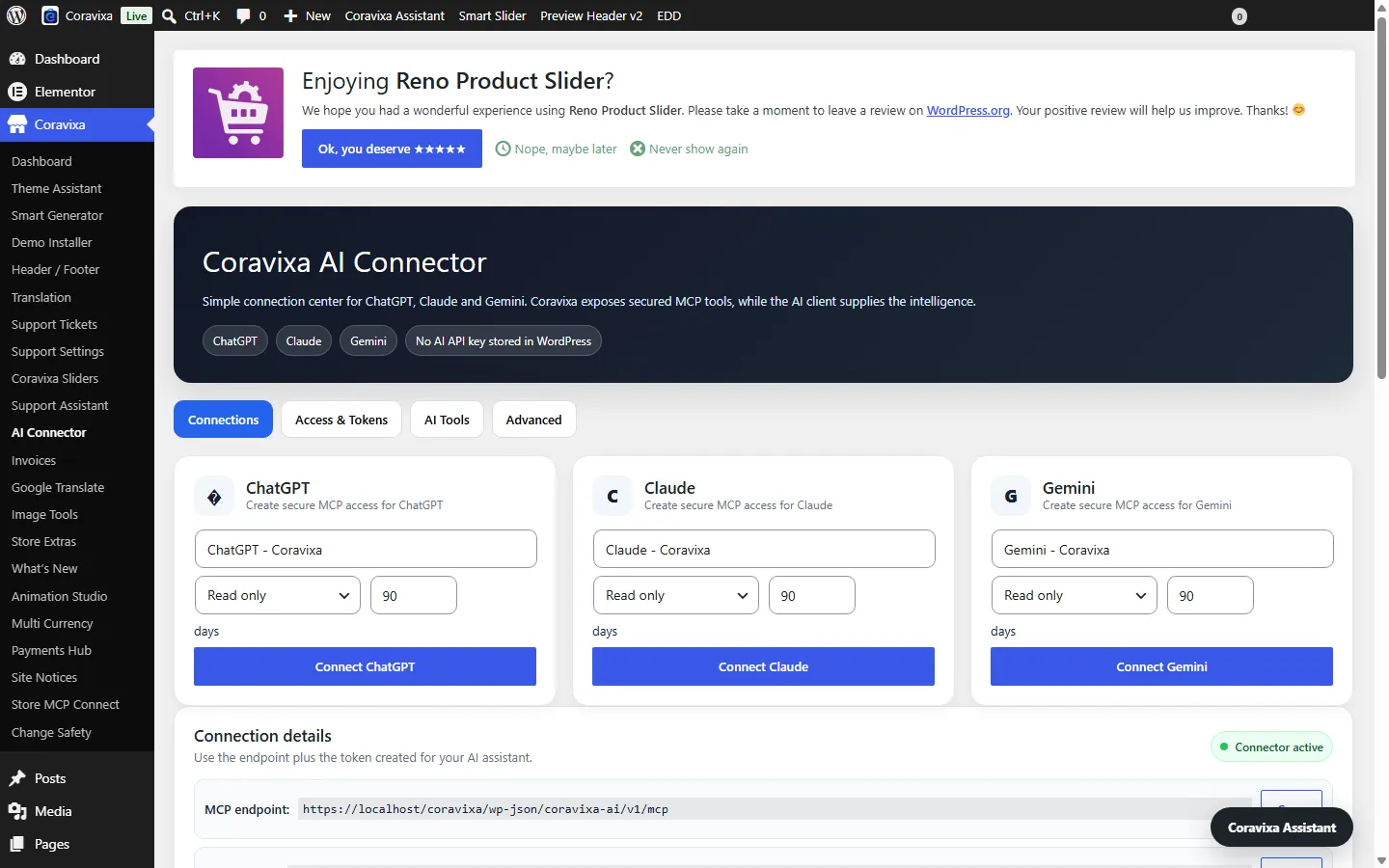
- Open Coravixa → AI Connector.
Store MCP Connect needs no installation. It ships inside Coravixa Core.
Step 2: Create a token in AI Connector
- On Coravixa → AI Connector, copy the MCP endpoint shown in the table (
https://your-site.com/wp-json/coravixa-ai/v1/mcp). - Under Create token, enter a name (for example Claude laptop), choose Read only or Read & write, and set how many days the token stays valid. The default is 90 days. Enter 0 for no expiry.
- Click Generate token and connection URL. A yellow notice shows one single connection URL that already contains the token (endpoint +
cai_…token). Click Copy URL; it is shown only once. For clients with a header field, the plain token is shown below the URL. WordPress stores only a SHA-256 fingerprint.
Step 3: Turn on Store MCP Connect and create a token
- Open Coravixa → Store MCP Connect. The status pill shows Off.
- Click Turn on. While it is off, every token is rejected with a 503 message.
- Under 2. Access tokens, enter a name, choose Read only (recommended) or Read & write, and choose 7 days, 30 days, 90 days or 1 year.
- Click Create token and copy it. It starts with
vmcp_and is shown only once. If you lose it, revoke it and create a new one. - Copy the Server address from 1. Connect (
https://your-site.com/wp-json/coravixa/v1/mcp).
A token acts with the rights of the administrator who created it, never more. If that administrator later loses store access, the token stops working.
Step 4: Connect your AI client
Replace the address and token with your own values. Use the endpoint of the connector you want (see the table above).
Claude Code (command line)
claude mcp add --transport http coravixa https://your-site.com/wp-json/coravixa/v1/mcp --header "Authorization: Bearer YOUR_TOKEN"Add the AI Connector in the same way with a different name and its own endpoint and cai_ token:
claude mcp add --transport http coravixa-pages https://your-site.com/wp-json/coravixa-ai/v1/mcp --header "Authorization: Bearer YOUR_CAI_TOKEN"Other MCP clients (JSON configuration)
{
  "mcpServers": {
    "coravixa": {
      "type": "http",
      "url": "https://your-site.com/wp-json/coravixa/v1/mcp",
      "headers": { "Authorization": "Bearer YOUR_TOKEN" }
    }
  }
}
Any other client
Send JSON-RPC 2.0 POST requests to the endpoint with the header Authorization: Bearer YOUR_TOKEN. Alternative header names are X-Coravixa-AI-Token (AI Connector) and X-Coravixa-Token (Store MCP Connect). The AI Connector also offers a public status check at /wp-json/coravixa-ai/v1/status.
https://your-site.com/wp-json/coravixa-ai/v1/mcp/cai_xxxxxxxx_…. The model runs in your AI client. WordPress only exposes the approved tools.no-store and no-referrer headers.Step 5: Test with safe prompts
Begin with read-only requests and watch the tools the assistant calls.
- "Give me an overview of my store." calls
store_overview. - "List my draft products and tell me which are out of stock." calls
list_products. - "Show the section types I can use for a landing page." calls
list_section_types. - "Plan a homepage for a premium organic skincare shop." calls
generate_site_plan.
Then, with a Read & write token, try one harmless change:
- "Create a draft page called Skincare Landing with hero, categories, products, features, social proof, newsletter and call to action." Result: a draft page with an edit link. Nothing is published.
- "Set the stock of product 123 to 40." The assistant should preview first and ask you to confirm.
Preview, APPLY and undo
Store changes follow a two-step workflow so nothing changes by surprise.
preview_store_workflowvalidates up to 20 steps (update_stock,update_price,update_order_status,set_payment_method,create_page) and changes nothing.- You review the preview. Then the assistant calls
execute_store_workflowwith the confirmation textAPPLY. Any other value is refused. - Supported write actions record a Change Safety snapshot. Ask the assistant to run
list_change_snapshotsand thenrestore_changewith a snapshot ID to undo.
Local Page Generator and Section Generator (no AI API)
Both admin screens work without an AI client. On Coravixa → AI Connector:
- Local Page Generator: type a page title and a short brief, then click Generate draft page. The generator matches the brief to a Coravixa niche and builds a draft from Section Builder sections.
- Local Section Generator: describe a section, choose its type and optional style, and generate it. Enter a Page ID to append it to an existing page. A revision is saved first.
These generators use deterministic prompt matching, Coravixa niche data and existing theme layouts. They never call an external AI service. Generated pages are drafts for review.
AI Connector tools (7)
| Tool | Access | What it does |
|---|---|---|
site_overview | Read | Site name, URL, WordPress and theme versions. |
list_pages | Read | Lists pages with status and edit links. Optional search and limit. |
list_section_types | Read | Lists Coravixa Section Builder sections and their styles. |
generate_site_plan | Read | Creates a local site plan from a business brief. No external AI API. |
generate_section | Read | Returns Gutenberg block markup for one section. Nothing is saved. |
create_page_from_prompt | Read & write | Creates a draft page from a brief, with optional section list and styles. |
append_section_to_page | Read & write | Appends one generated section to a page after saving a revision. |
Store MCP Connect tools (16)
| Tool | Access | What it does |
|---|---|---|
store_overview | Read | Product counts, orders by status, enabled payment methods, pickup. |
list_products | Read | Lists products with optional search, status and stock filters. |
get_product | Read | Details of one product by ID. |
list_orders | Read | Recent orders. Customer names, emails and addresses are never returned. |
list_payment_methods | Read | Payment methods managed by the Coravixa Payments Hub and whether each is on. |
list_pages | Read | Lists pages with status and links. |
list_section_types | Read | Section Builder sections, styles and look groups. |
list_change_snapshots | Read | Recent reversible changes recorded by Change Safety. |
preview_store_workflow | Read | Validates and previews a multi-step workflow without changing data. |
update_product_stock | Read & write | Sets stock for a simple product or variation. |
update_product_price | Read & write | Sets regular and optional sale price for a simple product or variation. |
update_order_status | Read & write | Moves an order to processing, completed, on-hold or cancelled, with an optional note. Refunded orders cannot be changed. |
set_payment_method | Read & write | Turns an installed payment method on or off. |
create_page_from_sections | Read & write | Creates a draft page from Section Builder sections. |
restore_change | Read & write | Restores one Change Safety snapshot. |
execute_store_workflow | Read & write | Runs a reviewed workflow. Requires the confirmation APPLY. |
Security and limits
- Tokens are random, shown once and stored only as SHA-256 hashes. They can expire and be revoked in one click.
- Read-only tokens cannot change anything. Write tools return a clear refusal if the token is read-only.
- There are no delete tools. New pages are always drafts.
- Customer names, emails and addresses are never returned by Store MCP Connect.
- Store MCP Connect limits each token to 120 requests per minute, locks an IP for 10 minutes after 20 failed attempts, accepts at most 10 requests in a batch and at most 20 steps in a workflow.
- Every call is written to the activity log (the latest 100 entries). Review it under Coravixa → Store MCP Connect → Recent activity.
- Do not paste tokens into screenshots, tickets or chat messages. Revoke a token if it was exposed.
Localhost and staging
Cloud AI services cannot reach localhost. For local XAMPP development, expose only the MCP endpoint through a secure HTTPS tunnel. On staging or production, use the site's HTTPS URL. Store MCP Connect enforces HTTPS only when the site environment type is production.
Troubleshooting
| Message | Cause and fix |
|---|---|
| Missing or malformed token | The header must be Authorization: Bearer cai_… or vmcp_…. Use the AI Connector token with the AI Connector endpoint and the Store MCP token with the Store MCP endpoint. |
| Invalid token / expired | The token was revoked or has expired. Create a new one. |
| Store MCP Connect is switched off (503) | Open Coravixa → Store MCP Connect and press Turn on. |
| HTTPS is required (400) | Production sites must use HTTPS. Fix the site URL or SSL certificate. |
| This token is read-only | Create a Read & write token for write tools. |
| Too many requests (429) / Too many failed attempts | Wait one minute (rate limit) or ten minutes (failed attempts), then check the token. |
| Token owner lacks capability / creator lost access | Tokens act as the administrator who created them. Create a new token as an administrator with the needed rights. |
| WooCommerce is not active | Activate WooCommerce for the Store MCP tools. |
| Coravixa Core Section Builder is required | Activate Coravixa Core before generating sections or pages. |
| Client cannot connect, no header field | The app has no header field. Use the one-URL method (paste the generated connection URL as Server URL, with No authentication) or a client that accepts a custom Authorization header. |
| Works on the site but not on localhost | Use a secure HTTPS tunnel or a staging domain. |
Frequently asked questions
Do I need an OpenAI, Anthropic or Google API key in WordPress?
No. The AI model runs in your AI client. WordPress only exposes approved tools through revocable tokens, and the built-in generators run locally.
Can the AI delete products, orders or pages?
No. There are no delete tools, and the connector does not expose PHP execution, shell, raw SQL or secrets.
Can I undo a change made by the AI?
Supported store changes create Change Safety snapshots. Use list_change_snapshots and restore_change. Generated pages are drafts that you can simply delete or edit in WordPress.
Can I use both connectors at once?
Yes. Add both endpoints to your client with their own tokens.
Is MediaSource required?
No. The connectors and local generators work independently of MediaSource.